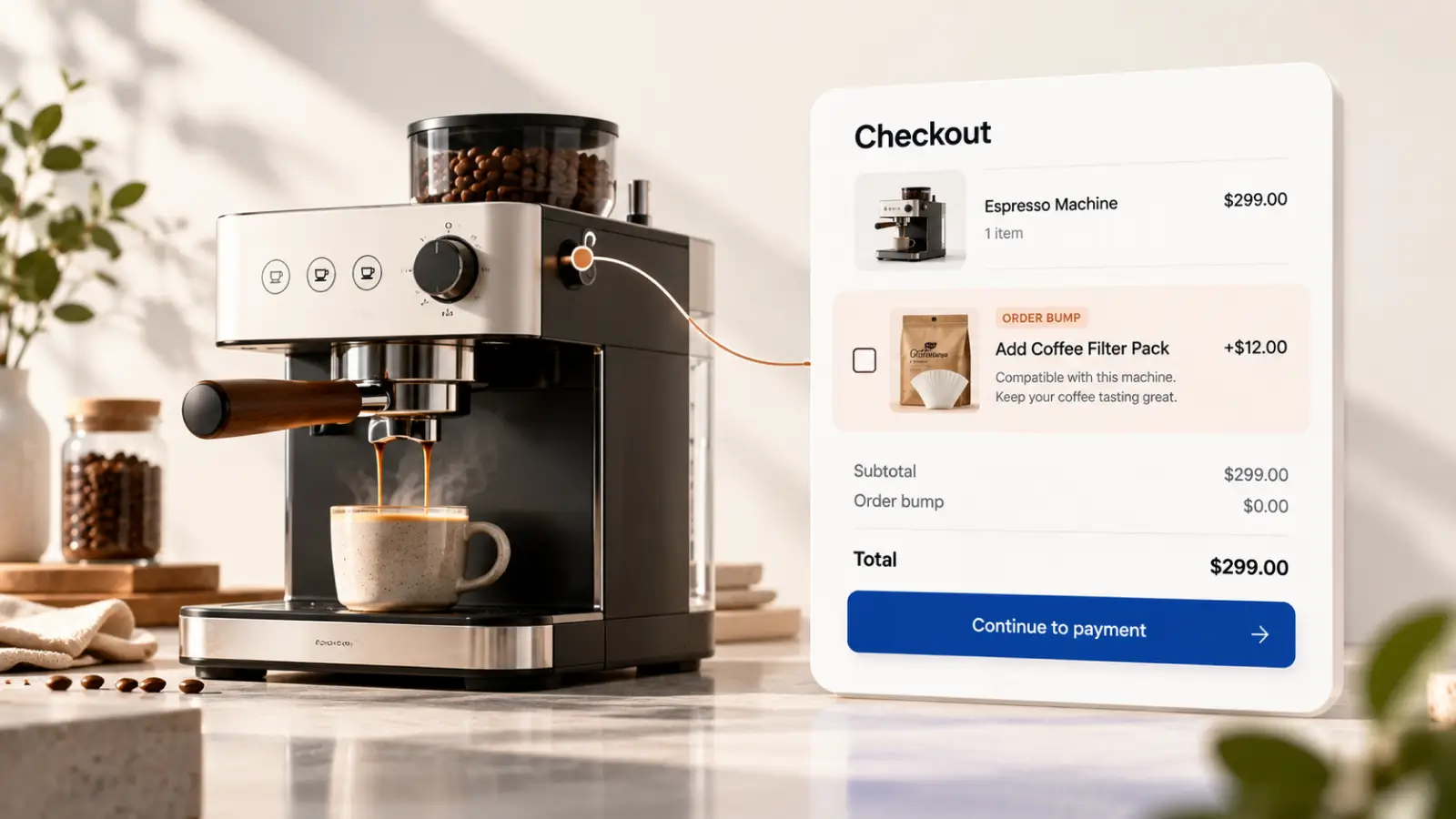
An order bump is a small, optional add-on offer presented while someone is already buying. A useful bump should make the original order more complete—not distract from checkout or surprise the customer with a charge. For a WooCommerce store, the difficult part is rarely writing the offer headline. It is choosing the right add-on, making the acceptance explicit and keeping the order total accurate.
This guide starts with offer strategy, then moves through a staging checklist and a measurement framework. The steps are intentionally plugin-neutral: exact controls and compatibility depend on the checkout implementation and the extension you use.
What counts as a good order bump?
Think of the offer as an extension of the shopper's current task. Someone purchasing a coffee machine may welcome a compatible filter pack; someone buying a software licence might benefit from an explicitly described setup service. A random unrelated accessory could interrupt the decision instead. The add-on must be genuinely optional, and its price must be visible before payment.
- Relevance: the add-on is useful with something already in the cart.
- Clarity: state the product, added cost and expected benefit in ordinary language.
- Control: the shopper can decline without losing the main purchase.
- Compatibility: the add-on respects stock, taxes, shipping and coupon rules.
- Measurement: track impressions, accepted offers and completed orders separately.
Design the offer before selecting a plugin
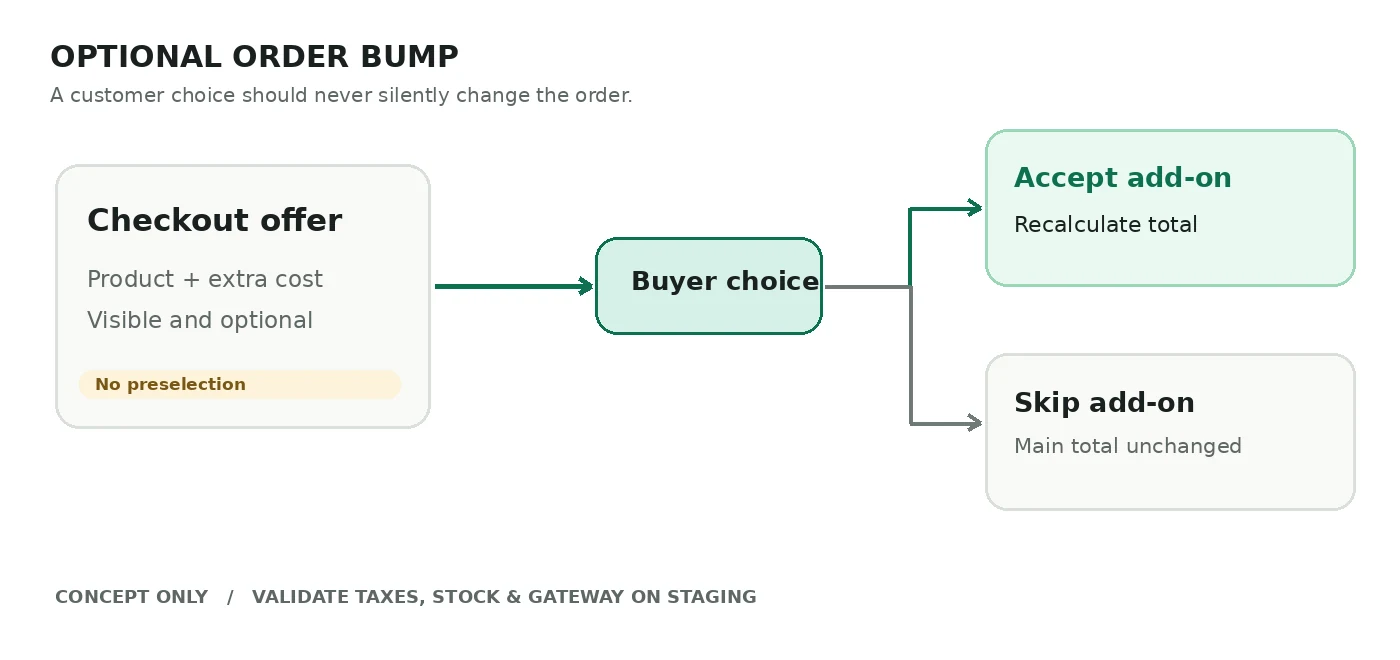
Start with one product pairing and one placement. Write down the trigger, the offered SKU, the price and the acceptance behavior. If the cart already contains the add-on, decide whether the offer disappears. If the item has variants or is out of stock, define the correct fallback before launch. Keeping the first experiment narrow makes problems easier to find. WooCommerce checkout optimization checklist.
For example, a merchant might offer a compatible cleaning kit alongside a kitchen appliance. This is a conceptual example, not a verified uplift case study or a measured CartLane result. Test whether the customer can see the extra charge before placing the order, and whether declining leaves the cart untouched.
Check the WooCommerce checkout type first
WooCommerce has a Checkout Block architecture with dedicated extension APIs. Developers should not assume that an interface relying on classic checkout hooks will automatically work inside the block checkout. WooCommerce's official documentation explains that additional checkout fields use explicit registration and supported locations. This is background on checkout extensibility—not a claim that every order bump plugin uses that API. Sources: WooCommerce developer documentation — Additional checkout fields; WooCommerce developer tutorial — Additional checkout fields.
Record whether the store uses the Checkout Block or a classic shortcode checkout. Then verify that your selected order bump implementation supports the actual store configuration. Review the payment plugins, theme, shipping logic and performance optimizations that can change checkout behavior.
A safe staging setup checklist
- Make a staging copy of the store, including the payment and shipping plugins used in production.
- Confirm the checkout type and document any limitations of the selected extension.
- Choose a simple in-stock add-on and define which cart items should trigger it.
- Configure offer copy that clearly shows the added price and does not preselect a purchase without consent.
- Test accepting the offer and verify its line item, quantity, taxes and final amount in the resulting order.
- Repeat while declining the offer; the main order should still complete normally.
- Repeat for a coupon, a shipping-method change, a guest customer and a returning customer.
- Check mobile checkout, keyboard interaction and the payment gateway actually used by the store.
- Review logs and event tracking before enabling the campaign on production.
Test the behavior, not only the design
A screenshot showing a checkbox says little about whether the offer works. The acceptance event must match the item actually added to the order. Test free shipping thresholds, taxable and non-taxable products, stock changes, variable products and a failed payment path where relevant. If you cannot reproduce the final totals, keep the campaign disabled.
Measure offer quality without inflating results
Track four numbers separately: eligible checkout sessions, actual offer impressions, explicit offer acceptances and paid orders containing the add-on. Offer acceptance rate is accepted offers divided by impressions; it is not automatically the percentage lift in revenue. You also need to examine refunds, checkout completion and whether the offer cannibalizes a purchase customers would have made anyway.
Do not claim a universal conversion improvement. Start with a baseline period and a simple test design. If you run an experiment, make sure the sample and observation period are sufficient before deciding that a variant wins.
Where CartLane Free and Pro fit
According to the current CartLane product listing, CartLane Free includes one active order bump campaign; CartLane Pro extends the commercial entitlement to unlimited active campaigns. Free also includes core side-cart and abandoned-cart recovery capabilities. Pro depends on the Free plugin rather than replacing it. These are vendor-listed release capabilities, not evidence of compatibility with your particular checkout or payment gateway. Sources: CartLane public CodeCanyon listing.
For a realistic setup review, install the CartLane Free foundation on staging, open its current order-bump workspace, and document the active offer's trigger, optional acceptance state, displayed extra cost, and checkout compatibility before enabling the campaign. Use CartLane Pro only when its additional active campaigns or advanced commercial features solve a verified need. Do not assume a classic-checkout test establishes Checkout Block compatibility. Explore CartLane Pro.
Common mistakes to avoid
- Offering an unrelated product merely because it has a high margin.
- Hiding the extra cost until the final payment step.
- Measuring an add-to-cart event as a completed paid add-on.
- Testing only desktop, while most shoppers on that store use phones.
- Assuming classic checkout compatibility proves Checkout Block compatibility.
- Launching several offer rules at once without a clear baseline.
Frequently asked questions
Is an order bump the same as a post-purchase upsell?
No. An order bump is an optional additional offer in the active buying flow; a post-purchase upsell is presented after the initial purchase. Payment handling and supported gateway behavior may differ.
Does every WooCommerce order bump plugin work with Checkout Blocks?
Do not assume so. Check your checkout type, the extension's current compatibility notes and an actual staging purchase. WooCommerce's block checkout has its own extension patterns. Sources: WooCommerce developer documentation — Additional checkout fields; WooCommerce developer tutorial — Additional checkout fields.
Which metric should I monitor first?
Begin with paid orders containing the add-on alongside total eligible checkouts. Keep impression and acceptance events separate so you can distinguish a tempting offer from an offer that genuinely survives the payment journey.
A practical next step
Pick one clear offer, write the acceptance and decline conditions in advance, then run the complete checkout test matrix on staging. Only after that should you optimize the headline, position or targeting rule. A technically reliable, useful offer is a better starting point than a flashy offer that silently changes order totals. Abandoned cart recovery testing guide.